





Night City Racing: neon supercar races solo or in 2-player split-screen
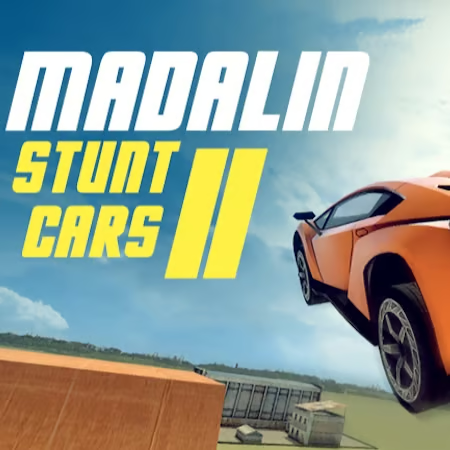
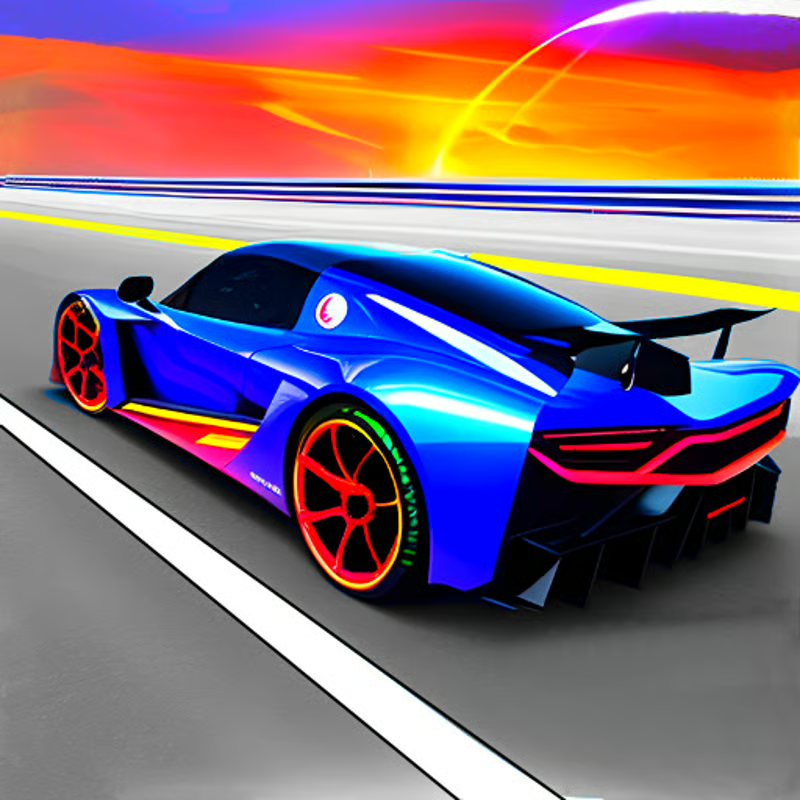
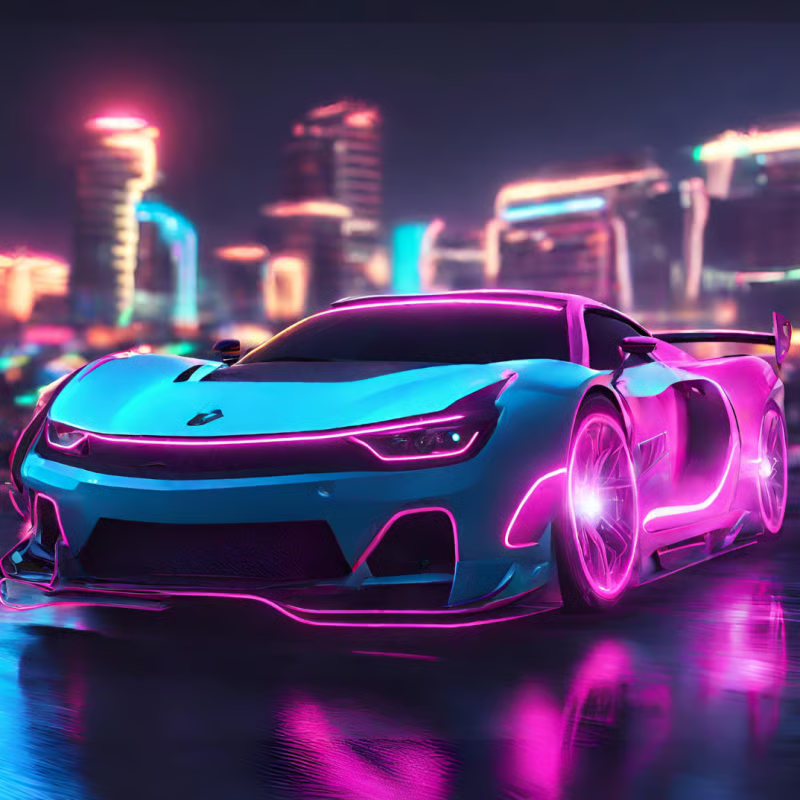
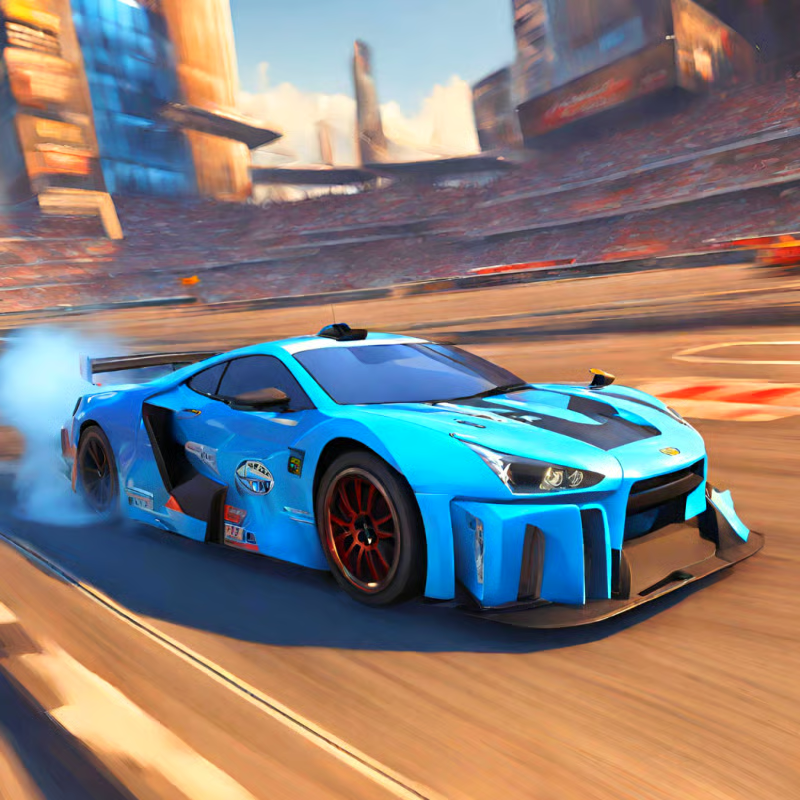
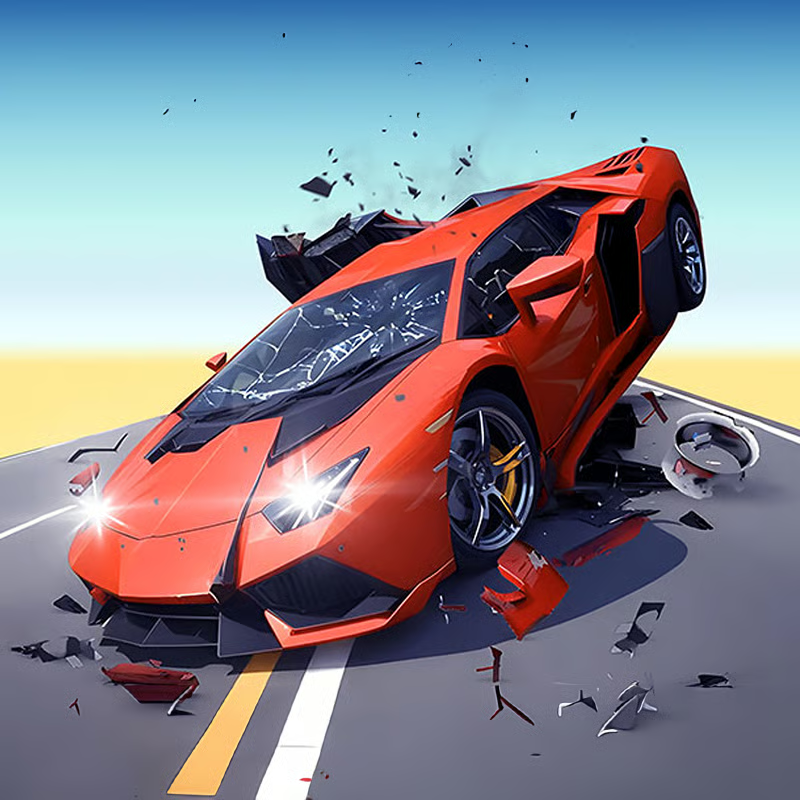
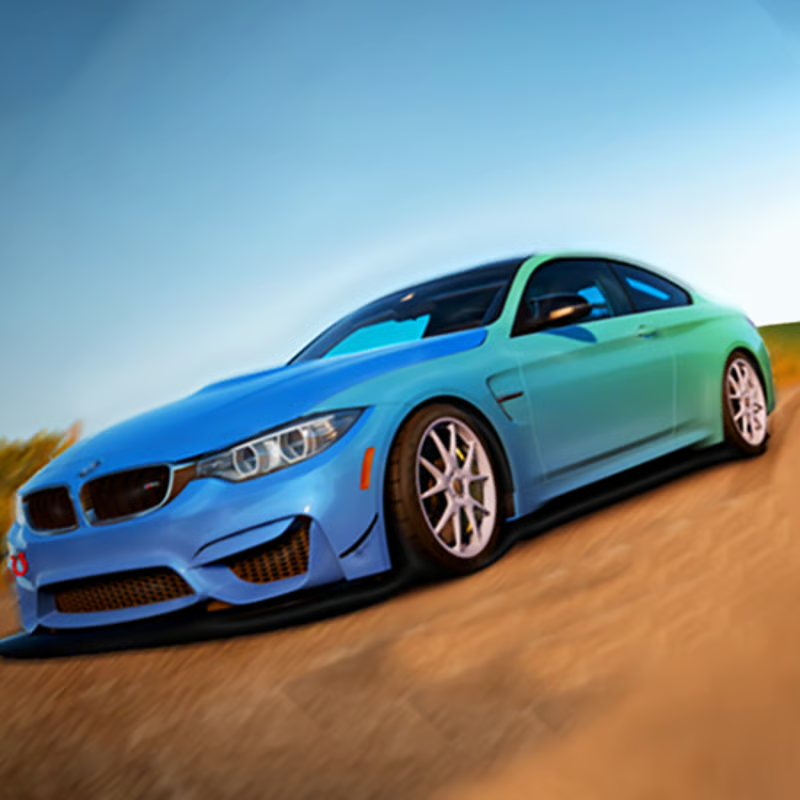
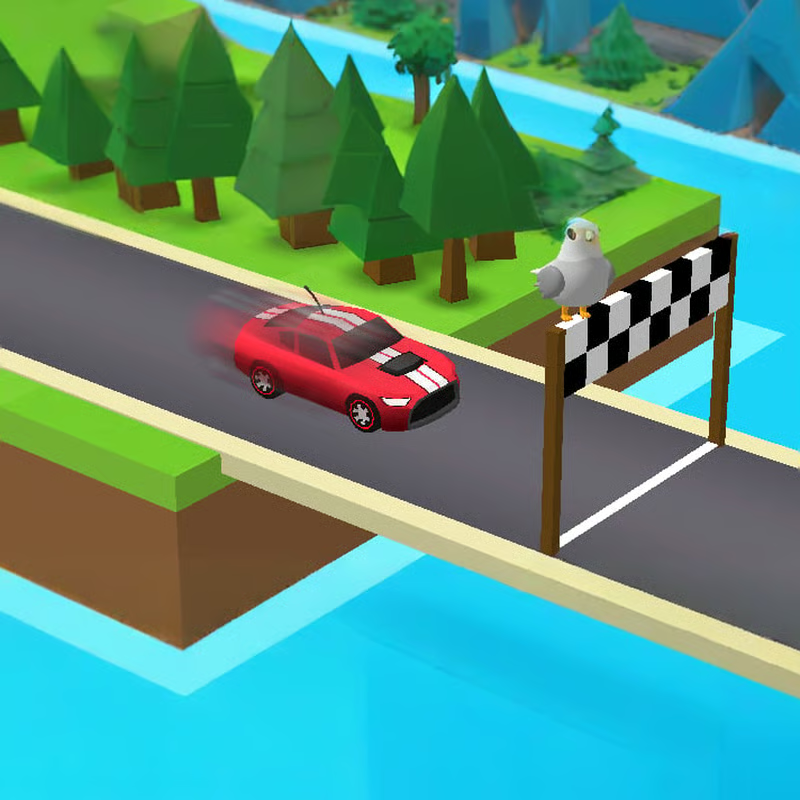
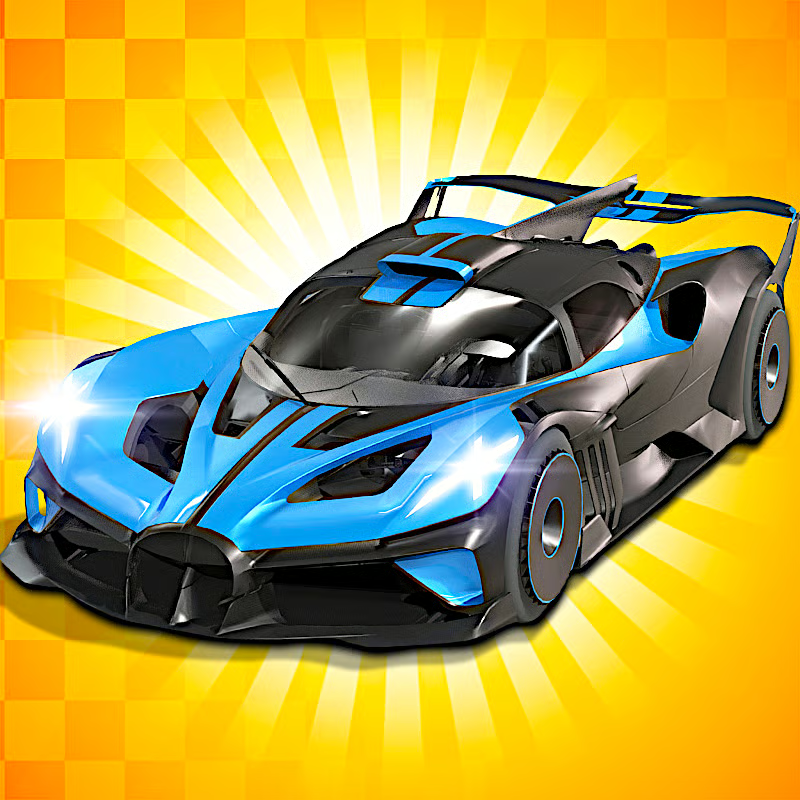
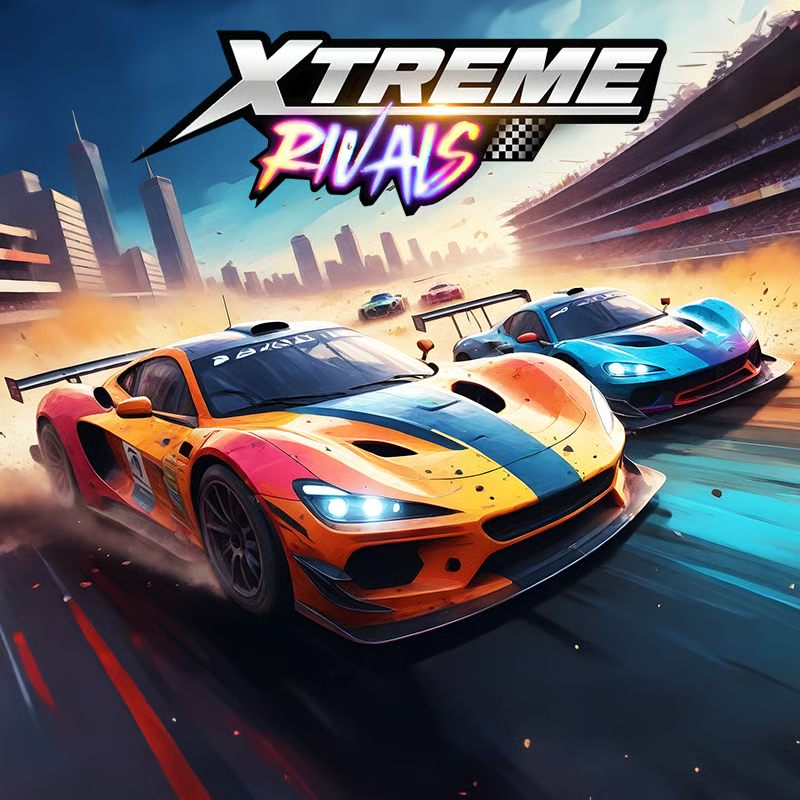
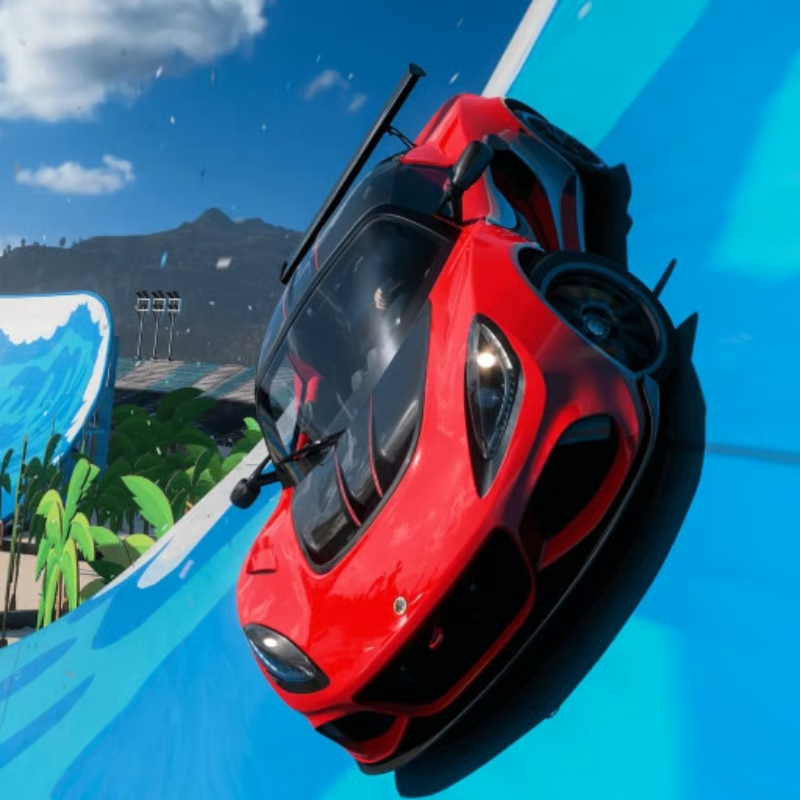
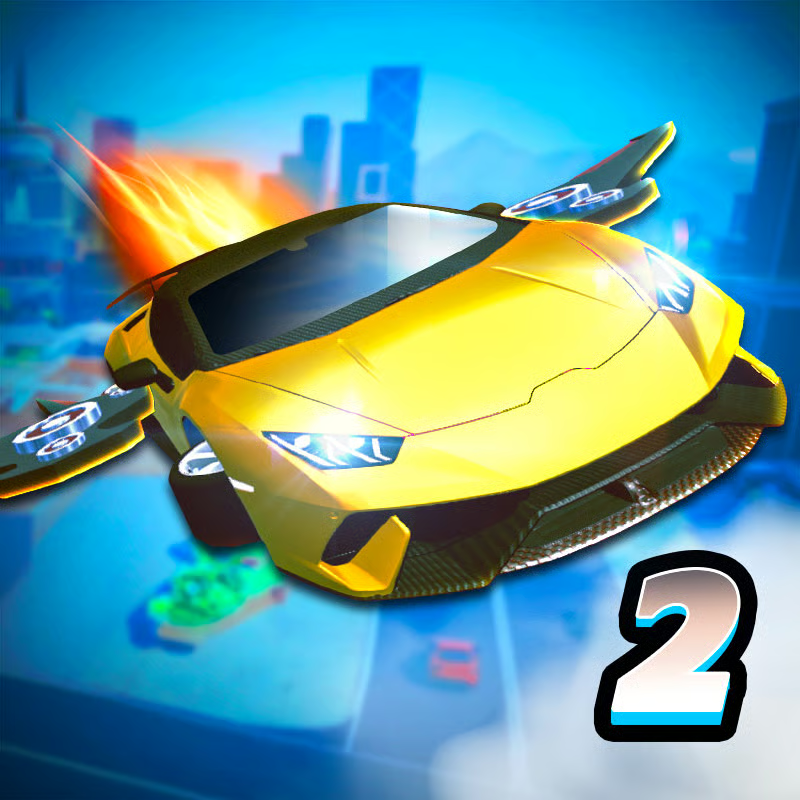
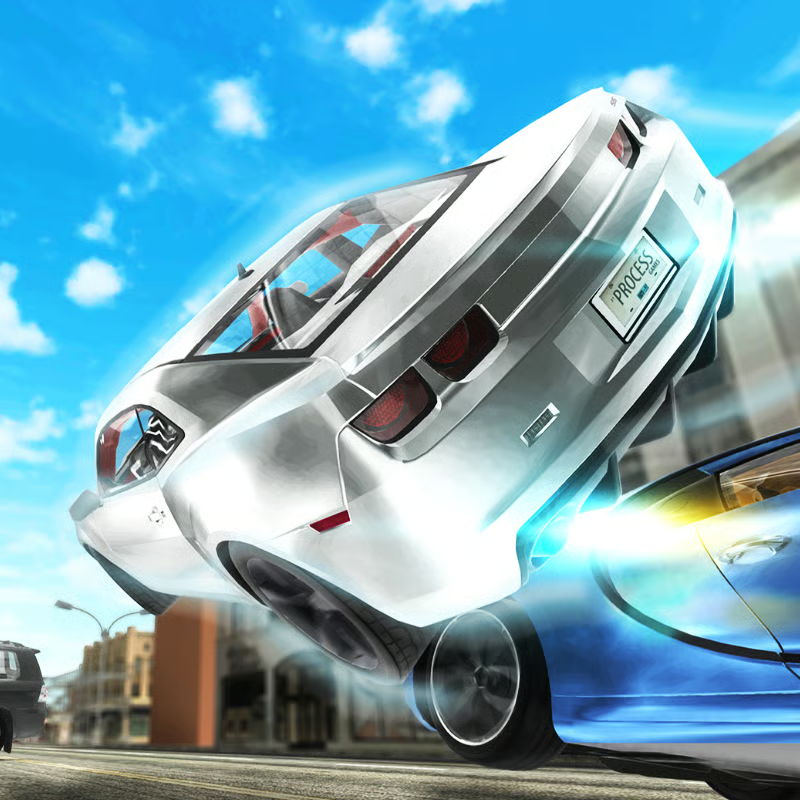
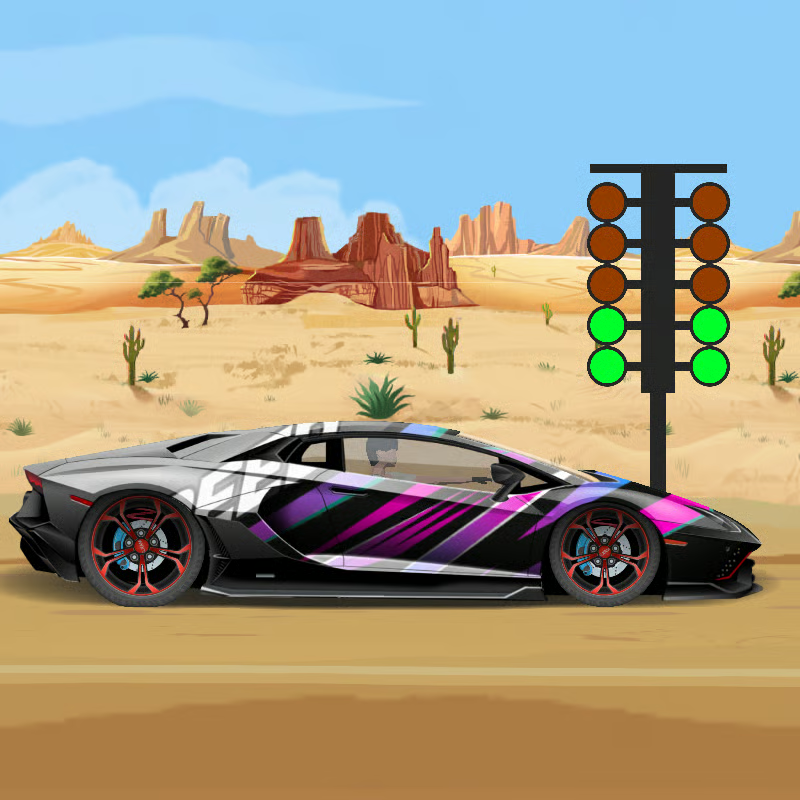
\nNight City Racing is a free browser 3D car game set in a neon city. You drive fast supercars on stunt tracks with loops, ramps, tunnels and jumps, racing against computer opponents or a friend on the same keyboard. There are 10 supercars in total - you start with two and buy the other eight with coins earned from races and challenges. Upgrades cover engine, brake, agility, turbo, booster, rims and paint.
\nThis guide covers the questions players ask most: exact 1-player and 2-player controls, when to use NOS and when to reset the car, how car unlocks and upgrades work, which mode to pick, and how to play unblocked in a browser with less lag.
\n1-player and 2-player controls
\nYou need a keyboard. Steering uses WASD or arrow keys. Split-screen is local on one computer, so Player 1 and Player 2 use different halves of the keyboard.
\nSingle-player keys
\n- \n
- Drive and steer: WASD or arrow keys \n
- NOS boost: Left Shift or Right Shift \n
- Restart car position: R \n
- Look back: T \n
- Change camera view: C \n
Two-player split-screen keys
\nPlayer 1 drives with arrows on the right side of the keyboard. Player 2 drives with WASD on the left side. Check the boost and reset keys before you start, because they are different for each side.
\n| Action | Player 1 | Player 2 |
|---|---|---|
| Drive and steer | Arrow keys | WASD |
| NOS boost | M | Left Shift |
| Restart car position | O | R |
| Look back | L | T |
| Change camera | K | C |
If boosts or resets feel swapped, you are probably reading the wrong player column. Player 1 must use M, O, L and K. Player 2 must use Shift, R, T and C. Practice one short race in single-player first, then start split-screen so both players know their keys.
\nHow to use NOS, restart and camera
\nNOS is not just for straights. It adds strong acceleration and can push the car off ramps and through the air for stunts. Do not hold it through every corner.
\n- \n
- Save NOS for corner exits and long straights. Brake and turn first, then boost as you straighten the car. This carries more speed into the next section than boosting into a turn and hitting a wall. \n
- Use NOS before big jumps and ramps when you are already lined up straight. Boosting while turned sideways often ends in a crash. \n
- Press restart right after a bad crash. The restart key puts the car back on the track. It is usually faster than trying to reverse out of a wall, barrier or drop, especially on narrow tracks with obstacles. \n
- Look back to check rivals, not all the time. A quick tap shows if an opponent or friend is about to pass. Keep eyes forward in loops, spirals and jumps. \n
- Change camera if corners feel hard to read. Cycle views with the camera key. A wider outside view helps on stunt tracks, while a lower hood view can help judge narrow gaps on technical tracks. \n
Racing, Challenge and Free Drive: which mode to pick
\nNight City Racing has three core modes. You can invite a friend for head-to-head play in these modes on the same computer.
\nRacing Mode: 16 tracks against AI
\nThis is the main career-style mode. You race on 16 tracks of rising difficulty, from city streets to airfield-style layouts, against four computer opponents. Finish first to win. Start here to learn braking points and earn your first coins for upgrades.
\nChallenge Mode: 5 task maps
\nChallenge Mode has five extra maps built around tasks rather than a normal first-place race. Expect time limits, obstacle courses and special events such as racing an airplane or beating the clock. These events pay useful money and can be repeated to farm currency for the next car or upgrade.
\nFree Drive: open practice with stunts and coins
\nFree Drive has no finish position and no time pressure. You cruise the open city arena, try loops and ramps, collect coins and practice drifting. Use it to learn a track layout before a hard race, test a new car after an upgrade, or warm up your 2-player keys without losing a race.
\nSimple choice: pick Racing to progress and unlock, Challenge to earn extra cash and test precision, Free Drive to practice, explore and pull stunts.
\nCar unlocks and which upgrades to buy first
\nYou start with two cars. Win races, finish challenges and collect coins in Free Drive to buy the other eight cars. The garage lets you upgrade engine, brake, agility, turbo, booster, rims and paint.
\n- \n
- Early priority: engine, agility and brake. On tight neon circuits, faster acceleration and sharper, more predictable braking help more than top speed alone. \n
- Next: turbo and booster. These improve boost power and recharge, which helps on long straights, airfield sections and jump tracks. \n
- Last: rims and paint. Treat wheels and color as style. Buy them after the car handles and accelerates the way you want. \n
- Farm coins efficiently. Replay early Racing tracks you can win cleanly, repeat challenges you have already cleared, and use Free Drive stunt runs and coin pickups to top up between races. \n
- Upgrade the car you drive most. Spreading small upgrades across many cars slows progress. Focus on one balanced car first, then save for the next unlock. \n
Prices and exact stat gains can differ by version, so there is no single best coin number to promise. As a rule, if you keep losing on a technical track, buy handling and brake first. If rivals pull away on straights, put the next coins into engine and turbo.
\nPlaying unblocked in a browser and reducing lag
\nNight City Racing is made for desktop browser play with a keyboard. It runs directly in the browser with no download required on many game portals. School or work networks may still block game sites, so unblocked access depends on your network.
\n- \n
- Use a computer with a physical keyboard. Split-screen needs two key sets at once, so touch controls and small screens are not practical for this game. \n
- Use an updated desktop browser such as Chrome or Edge, especially on Chromebook. Keep only the game tab open during races. \n
- Close heavy tabs and pause downloads or video calls. Browser racers stutter most when memory or connection is busy. \n
- Try fullscreen and a page refresh if the frame drops. If stunts or split-screen start to lag, reload the page, re-enter the mode, and avoid rapid camera switching mid-race. \n
- Practice in Free Drive first if your device lags. Shorter early Racing tracks are usually smoother than stunt-heavy later tracks. \n
Mobile and offline support varies by portal and version. For the most consistent result, play on a desktop or laptop browser with a keyboard and stable connection.
\nQuick FAQ
\nCan I play with a friend on the same computer?
Yes. Choose 2-player split-screen. Player 1 uses arrows plus M, O, L and K. Player 2 uses WASD plus Left Shift, R, T and C.
What do I do when my car flips or gets stuck?
Press the restart key at once: R in single-player, O for Player 1 or R for Player 2 in split-screen. Resetting is faster than steering out.
How do I get new cars?
Earn coins from Racing wins, repeatable Challenge events and Free Drive coins and stunts, then buy the remaining eight cars in the garage.
Which upgrade first?
Engine, agility and brake for control on city corners, then turbo and booster for straight-line speed and jumps. Rims and paint are cosmetic.
Comments(1)
I love these niggers driving the car!